Concord Online (v2.1) Data Migration - Export/Backup Notebook Data
For our Concord Online (v2.1) customers to migrate their data to new Concord
What are you looking to do? (click on one of the options)
Migrate Notebooks from Concord Online (v2.1) - click here
Import Notebooks via Copy/Paste from Concord Online (v2.1) to new ConcordMigrate Notebooks from Concord Desktop - click here
Convert Legacy Notebook data from Concord Desktop to new ConcordMigrate Annotations - click here
Convert/Export Annotations from Concord Desktop or
Concord Online (v2.1)Backup Notebooks from Concord Online (v2.1)
Export Notebook data to your computer
(instructions below)
Backup Notebook data from Concord Online (v2.1)
Step 1. Export Notebook data from Concord Online (v2.1) to local computer
- Login to Concord Online (v2.1) at concordworks.com
- Go to the Notebook tab on the right-hand side (as shown in Figure 1.1)
- Click on the “Open” icon

- Click on one of the Notebooks, and then click Open
- Click the “Export” icon

- Click on one of the Notebooks, and then click Export
- Depending on how you have your browser set-up:
- You may be asked where you want to save the document OR
- The file may default export to the “Downloads” folder on your computer
- NOTE: Downloaded file names relate to the name of the Notebook and end in file extension .html
- Repeat Steps 5 - 7, until you have downloaded all of your Notebooks to your computer
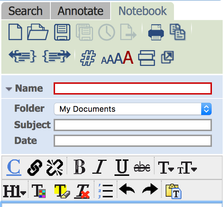
Figure 1.1