Lists Manager - Create a folder within a folder
Nested folders or creating folders within a folder is now supported in Concord.
Concord’s new Lists Manager allows users to organize their Lists using Folders. You can have up to 5 levels of folders.
Concord List Management Help Video
To create multiple levels of folders, please follow the steps below:
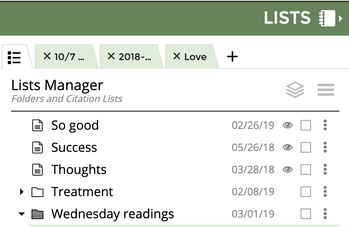
- Open the Lists Manager by clicking the 3-dot/3-line icon:
 .
.
- At the bottom of your lists, click on the button labeled Create New Folder.
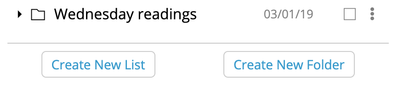
- A box appears where you can enter the name of the folder, and click Save.

- To create a folder inside it, click on the 3-dot menu on the right-hand side.

- Choose Add Folder.
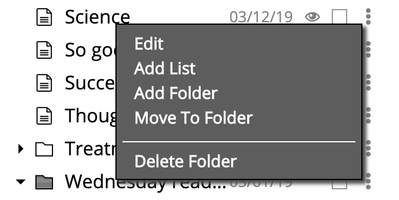
- You will again be prompted to enter a name for the folder, and click Save.

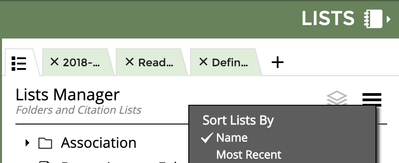
- Note: Folders are sorted in two ways within the Lists Manager:
1. Alphabetically
2. Most Recently Updated
Click on the 3-horizontal lines within the Lists Manager to adjust the sorting of your lists and folders.
Related articles
Other Concord List Management Videos